
last update
2026-April-20
VirJenDB
v1.0

Filtering Results
After searching you can further filter your search results to reduce the number of off-target hits for your search interest.
-
Open the filter menu by clicking the Filter button on the top right above your search results.
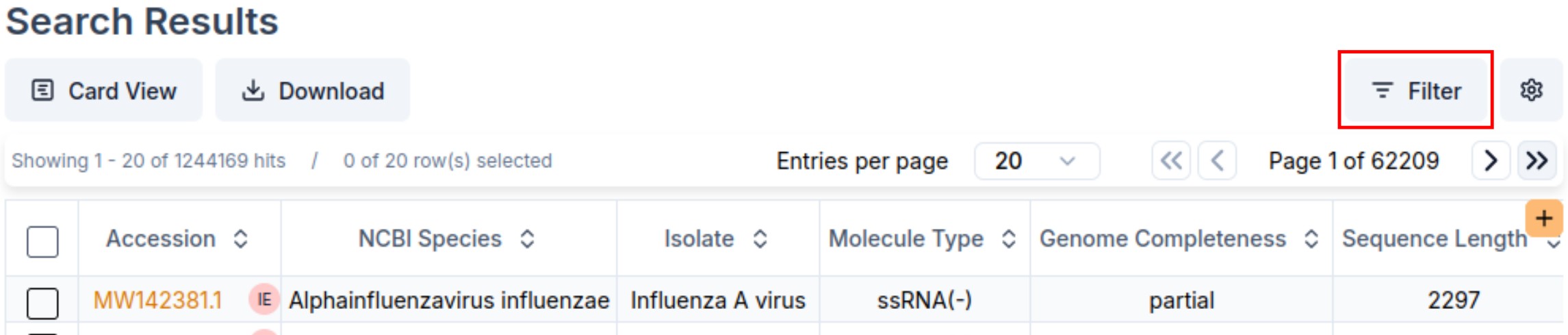
-
You will find some columns/metadata fields and available values for those columns. Each value comes with a count of how many hits contain that value.
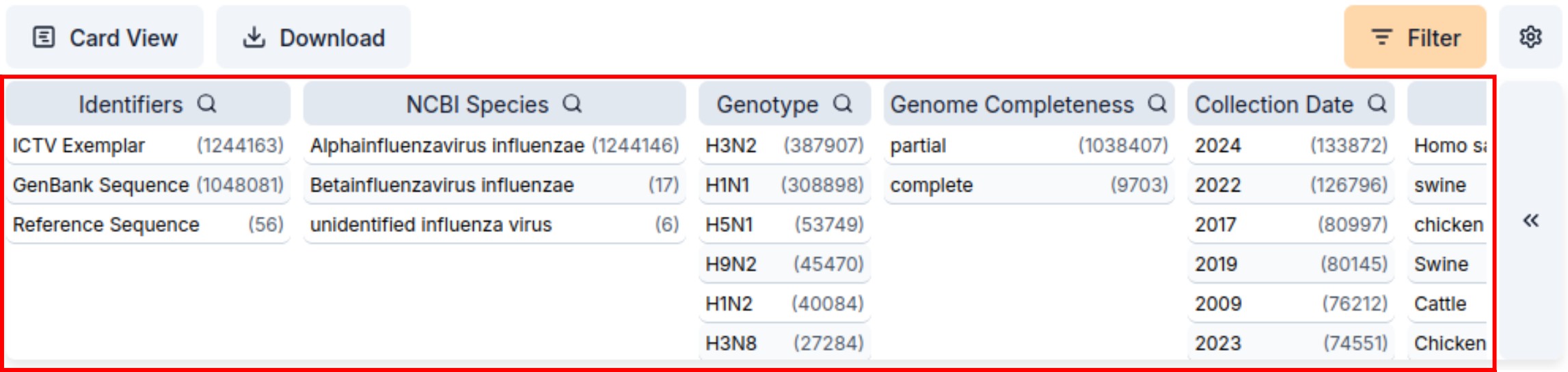
-
Apply a filter by clicking on the value. The results will update to fit the selected filter. Applied filters will be highlighted in orange. To de-select a filter click it again.
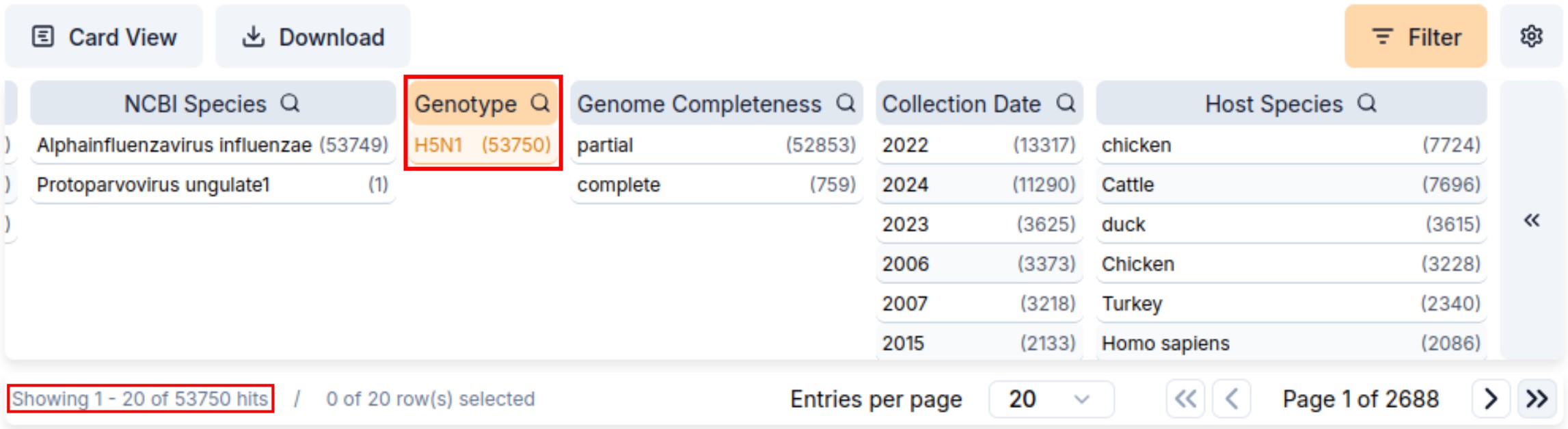
-
Clicking the name of a column will open an input field to search through the values of this column.
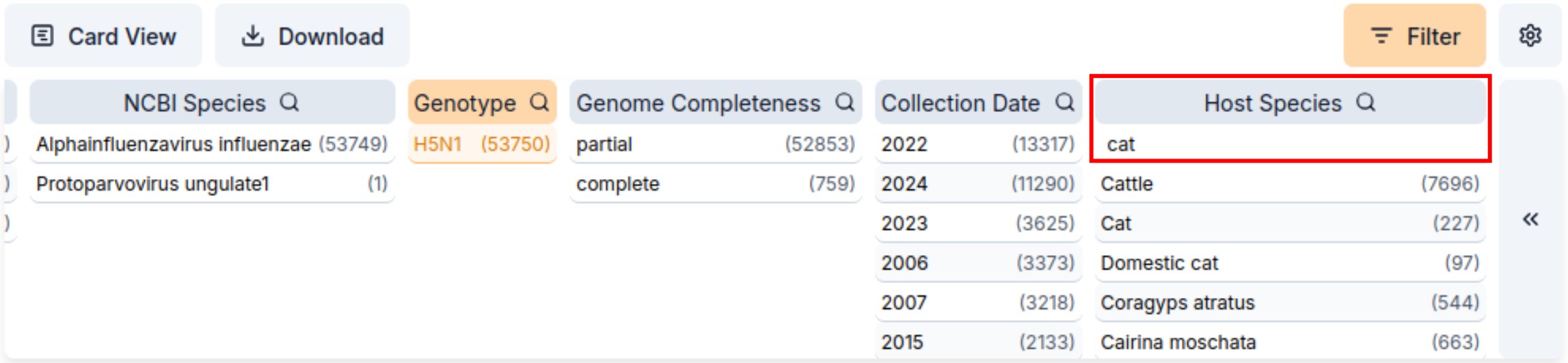
-
Currently we provide filter options for about 22 columns/metadata fields. You can find the list of all available columns by clicking the arrows on the right. Here you can toggle any column you like to be shown on the left side. Columns that do not hold any values are not selectable.
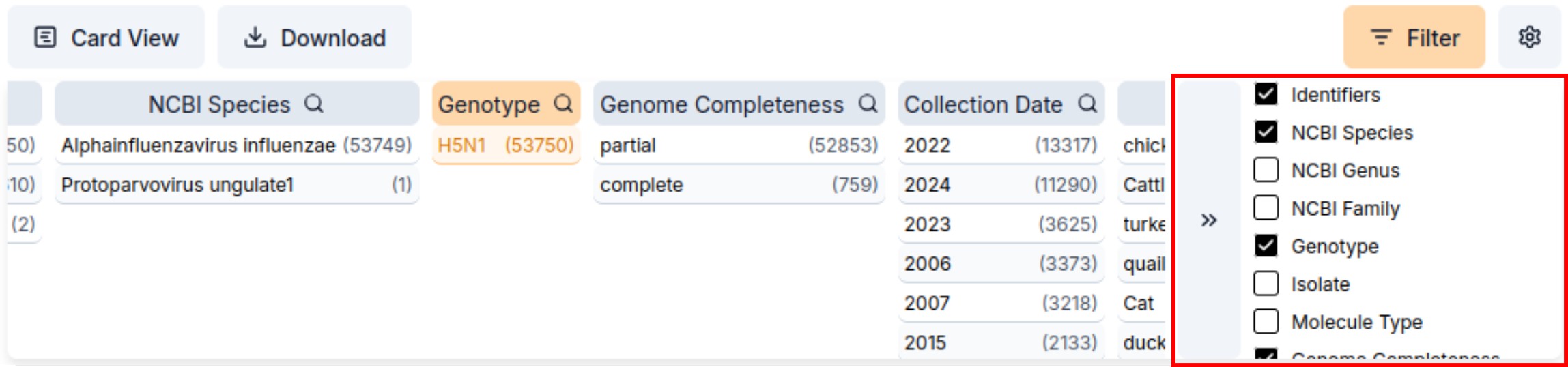
We plan to extend the available filtering columns as well as add fields with range values. If you wish for a specific field to be available as a filter, feel free to let us know!
Top Controls
- Card View – Switches from the table view to a card-based layout.
- Download – Allows you to export search results.
Depending on the configuration, this may be sequences (.fasta), VirJenDB accessions (.csv), table columns (.csv). - Filter – Opens the filter panel (see Filtering Results section).
Filters are applied to the current result set. - Settings (⚙️) – Provides options to customize the table view, such as shrink/expand table and hiding badges.